AI Scribe brings session capture and transcription into the clinical workflow, then generates a draft for the clinician to review. The design keeps recording controls close to the Notes screen while making capture, pause, and review states clear. The goal is less interaction overhead without hiding consent or professional responsibility.
Use AI to take over the heavy lifting of note creation.
Make clinical documentation faster, cleaner, and less stressful.
Keep the doctor focused on the patient, not the software.
Building a note during a live session meant juggling the conversation while clicking through Shrub buttons and fields. It was slow, easy to mess up, and demanded too much of the clinician’s attention at the worst possible time.
Lead UX from start to finish — I designed three complete versions, tested the flows, and drove us to the final build. Every decision kept the focus where it belonged: on the patient, not the UI.
Total from design handoff to release = ~6 weeks end-to-end
WIP
Review
Development
Shipped ✅
Archive
AI Scribe: Final Integration
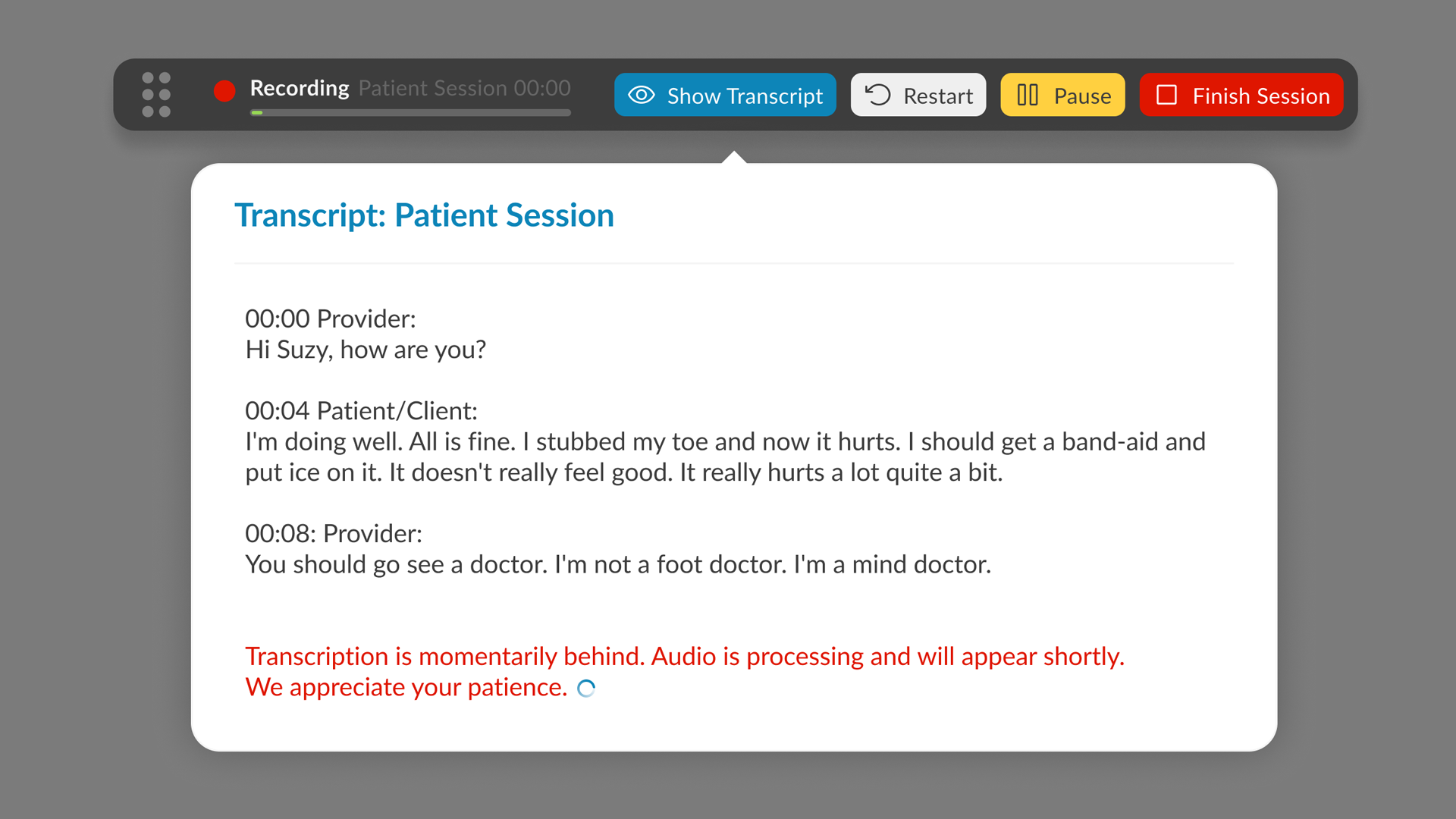
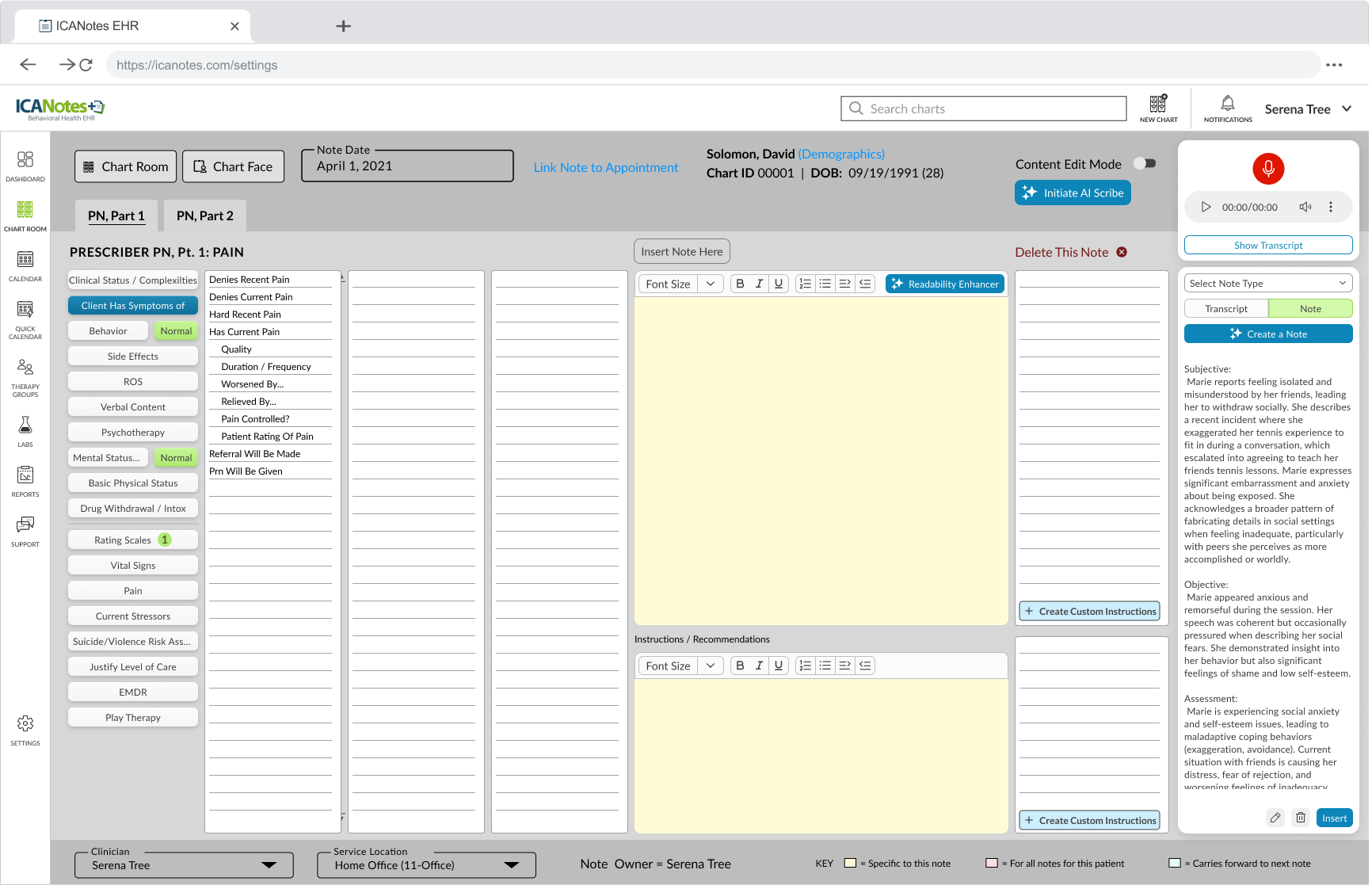
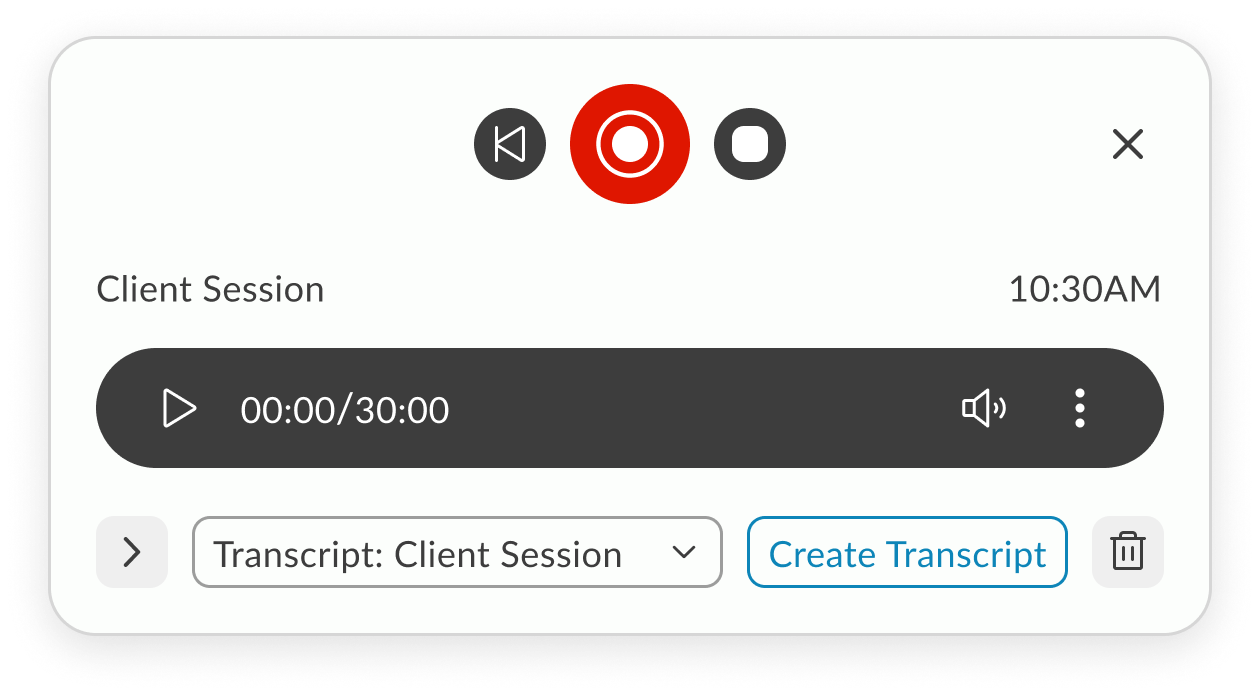
The final design brings transcription controls directly into the Notes screen, starting with session type selection (In-Person or Telehealth). Once live, the toolbar displays a popover with real-time transcription, pause/restart/stop controls, and a pulsating timer. In the redesigned UI, the toolbar is seamlessly integrated using the new design system, but remains draggable, allowing doctors to position it anywhere on the screen for convenience. The result is a flexible, unobtrusive workflow that supports both legacy and modern layouts without sacrificing usability.
Features
In-Person - Telehealth sessions
Record using built-in microphone
Local recording
Real time transcription
Pause, stop, restart
Add doctors remarks
Create Note
AI SCRIBE: PRODUCT CONTEXT AND DESIGN RATIONALE
1. The Problem: Documentation and Clinical Attention
Clinical documentation competes with attention during the session and adds work afterward. The design opportunity was to help clinicians capture a conversation without turning an AI draft into an unquestioned clinical record.
Documented product purpose:ICANotes describes AI Scribe as a tool that drafts notes from in-person and telehealth sessions. Clinicians remain responsible for consent, reviewing the output, and finalizing the note. Those boundaries make visible recording controls and a clear review step essential.
Clinical Burnout
Documentation effort can compete with clinical attention. The interface should reduce avoidable interaction without promising that automation removes all review work.
The “Screen Barrier”
Recording controls should remain visible without dominating the Notes screen. The design aims to let clinicians manage capture while staying engaged with the client.
Memory Decay
A transcript can provide a reference after the session, but it cannot replace professional judgment. Clinicians need a clear path to review and correct the generated draft.
2. Connecting Interface Choices to User Needs
The design connects each interface choice to a practical need. These are design rationales, not independent proof of a measured outcome.
Feature
Validating User Need
Speaker Designation
Speaker labels help clinicians interpret who said what and identify attribution errors during review. The interface should not imply that automated speaker assignment is always correct.
Draggable Toolbar
A movable toolbar lets clinicians keep recording controls nearby without covering the information they are reviewing on the Notes screen.
Real-time Popover
Visible transcript progress helps clinicians check whether capture is working. A running timer alone should not be treated as proof of successful transcription.
3. Recording States and Recovery
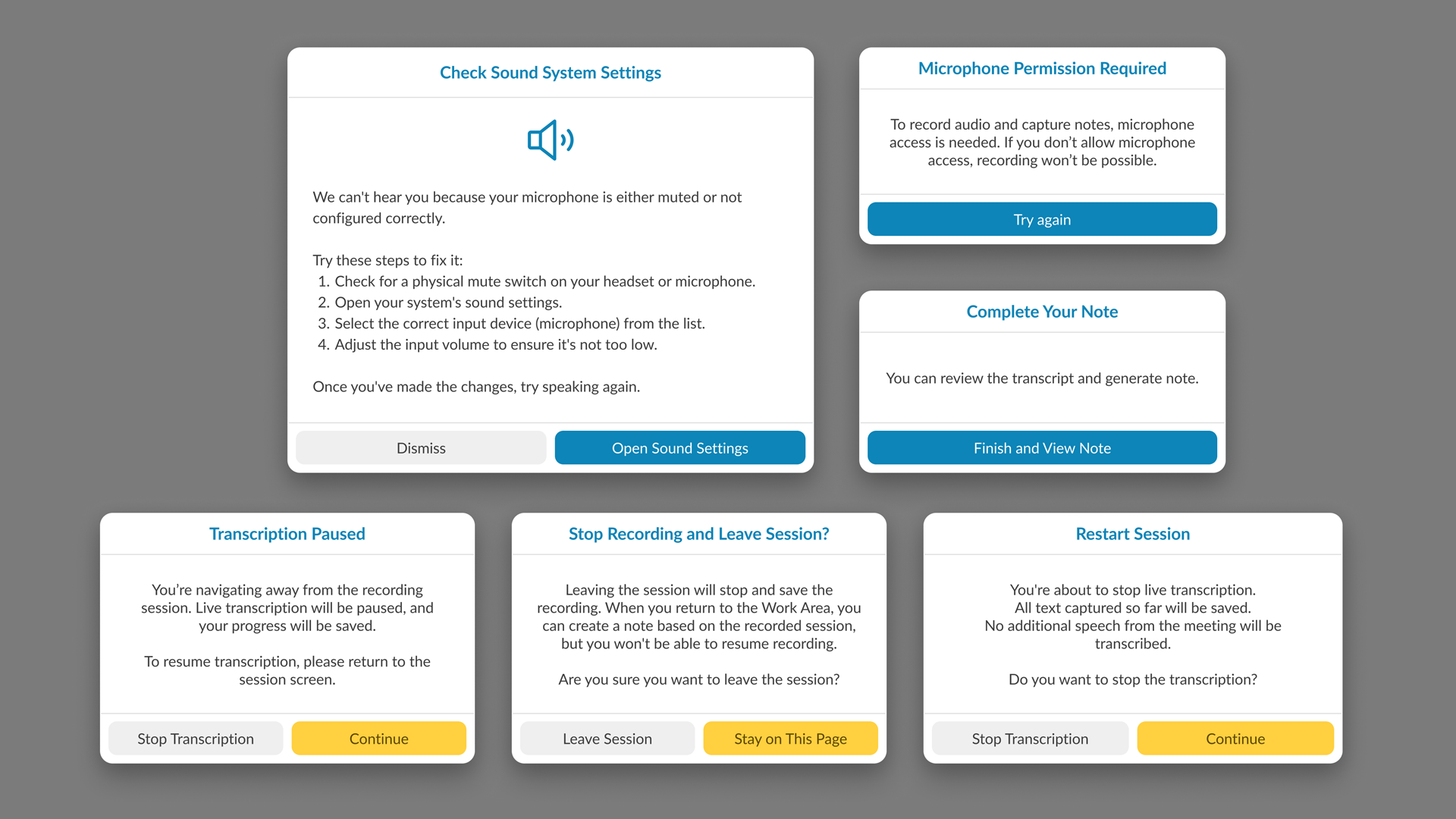
Recording needs understandable states and recovery paths. A technical failure should lead to a clear next step rather than uncertainty about what was captured.
The Internet Lag Challenge
Telehealth adds browser permissions and audio-source selection to the session workflow. Setup should explain what needs access before recording begins.
Local Buffering
The KB describes device- and browser-specific recordings and local transcripts. This makes it important to explain where session material is available and avoid implying it will follow the clinician to another device.
State Management
The timer communicates recording state, while transcript progress communicates capture. The design should distinguish recording, paused, processing, and error states instead of asking one animation to communicate every condition.
Privacy & Ethics (HIPAA)
Ambient capture involves sensitive conversations. Consent and review remain clinical responsibilities, and the interface needs clear recording and pause controls.
Consent Workflow
A visible recording state helps make capture explicit. It supports the consent conversation but does not obtain consent by itself or establish compliance.
4. Keeping Capture and Review Together
Why integrate with Notes? Session capture, transcript review, and note creation are related tasks. Keeping them together creates a clearer transition from recording to a draft the clinician can edit.
Reduced Context Switching
Keeping controls inside Notes avoids a separate handoff between a recording app and the clinical workspace. The intended benefit is less context switching, not a quantified productivity gain.
5. Proposed Measures of Success
These measures would help evaluate whether the workflow supports clinicians in practice. They are proposed evaluation criteria, not measured product outcomes.
Time-to-Note Completion
Compare the time required to review, correct, and finalize a note with the existing workflow. Include editing time rather than measuring draft generation alone.
Eye-Contact Ratio
Ask clinicians whether the controls interrupt the session and observe when they need to turn back to the screen. Treat perceived presence as qualitative feedback, not a clinical outcome.
Transcript Accuracy & Error Rate
Review the types of corrections clinicians make, including attribution mistakes and missing or inaccurate content. Fewer edits alone should not be used as proof of clinical accuracy.
6. Final Reflection
The design goal is a quiet but legible assistant: easy to start, clear about what it is doing, and easy to pause or review. The central tradeoff is reducing interaction effort without hiding recording state or clinical responsibility.
External perspective: In Capterra reviews, Melissa B. valued faster progress-note writing, while Merlyn C. reported difficulty navigating and compiling notes. These comments concern the wider product, not this Scribe redesign, and reinforce the need to support both efficiency and clarity. Read the reviews.
On-demand — slide-in when ready to capture the session.
Breaking and rebuilding until it works better.
Design Process
We mixed it up. I watched live sessions to see the real workflow in action — the pauses, the clicks, the workarounds. I used initial sketch, AI prototyping tools like Lovable to get ideas in front of people fast, then we brainstormed different approaches, called out dependencies, and left space for dealing with glitches.
After each iteration, I walked the idea through with the team, took notes on what actually landed, and folded those observations into the next round. We kept going until every stakeholder was on the same page and the flow felt solid enough to build.
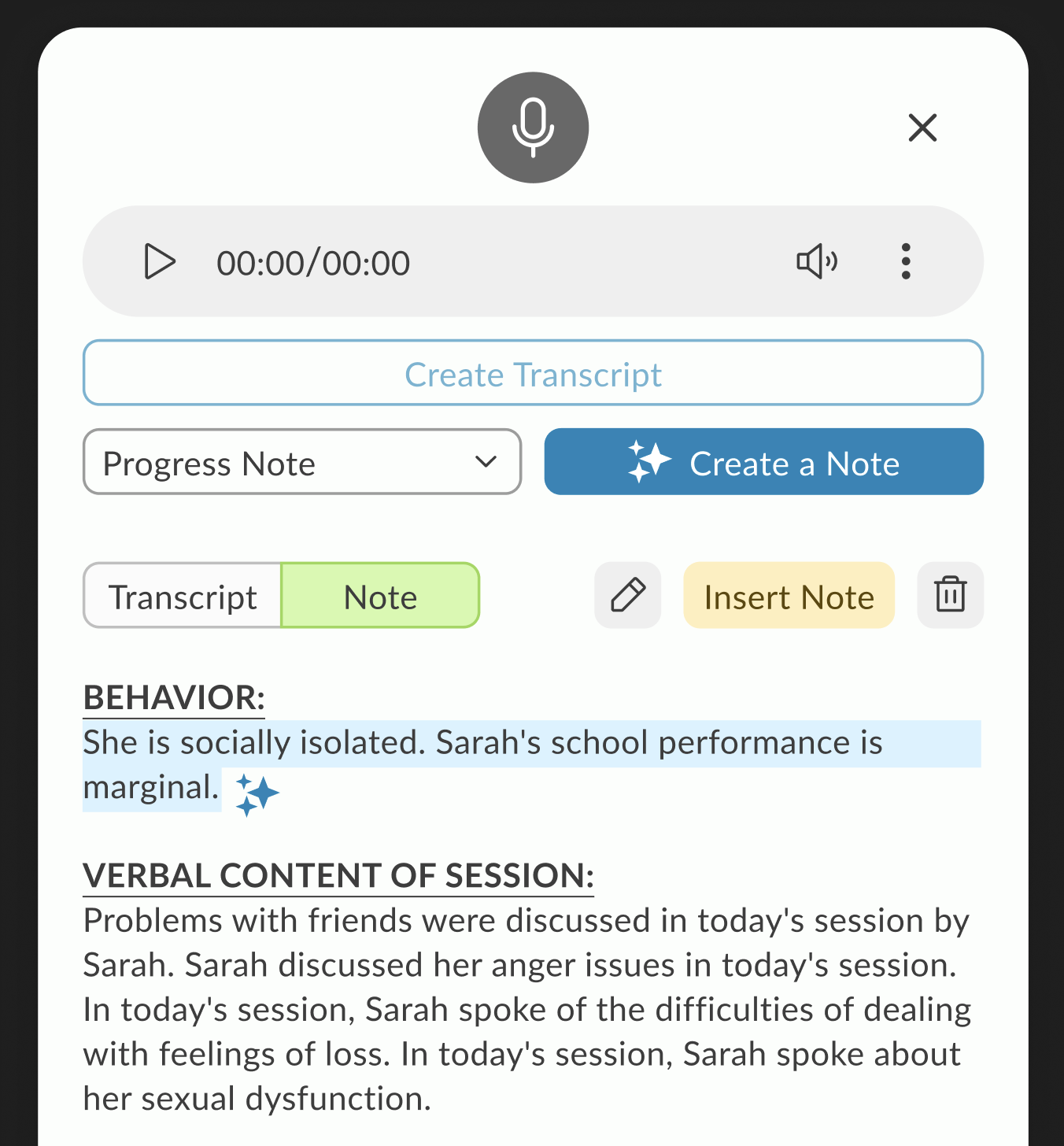
Exploration 1: Slide-in Modal from Note Screen
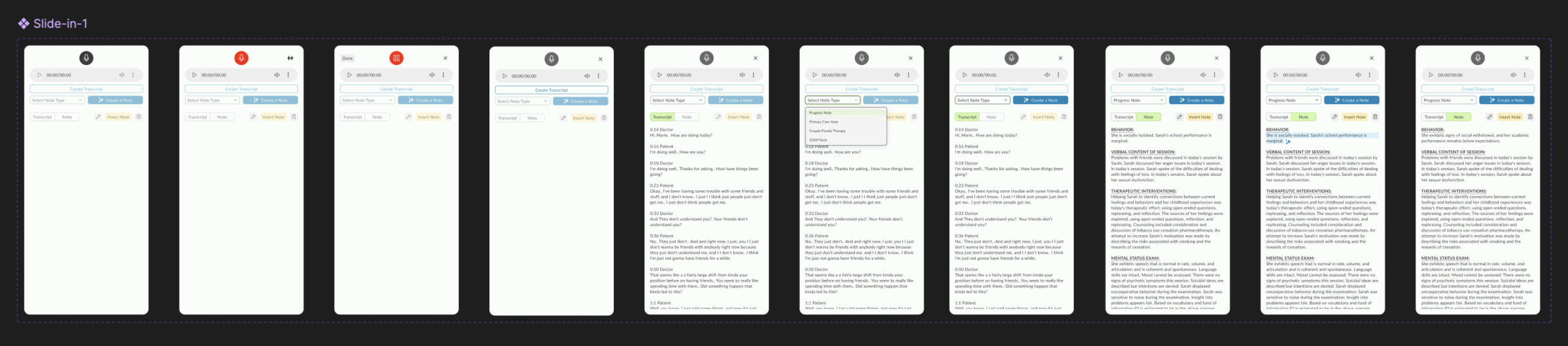
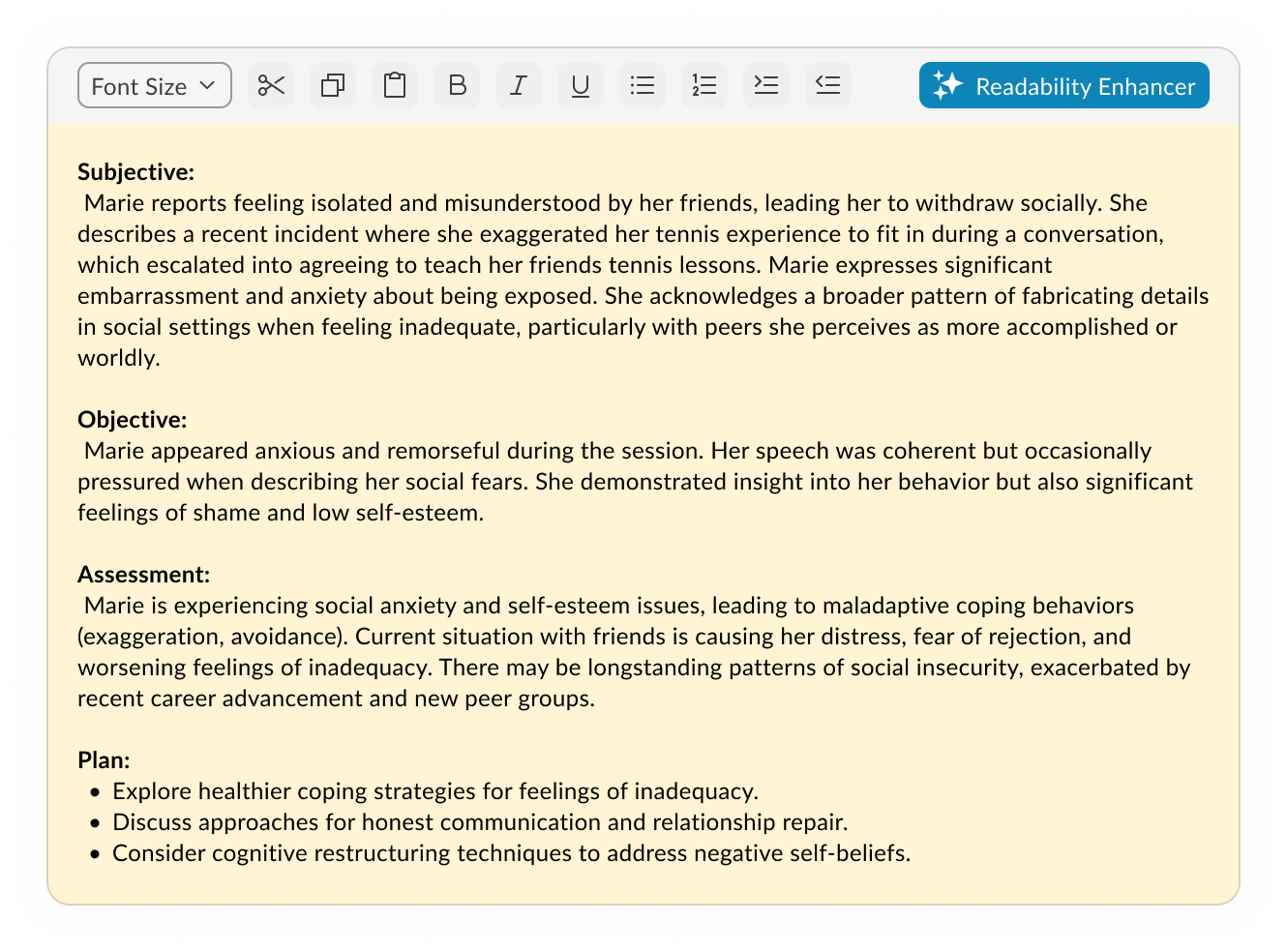
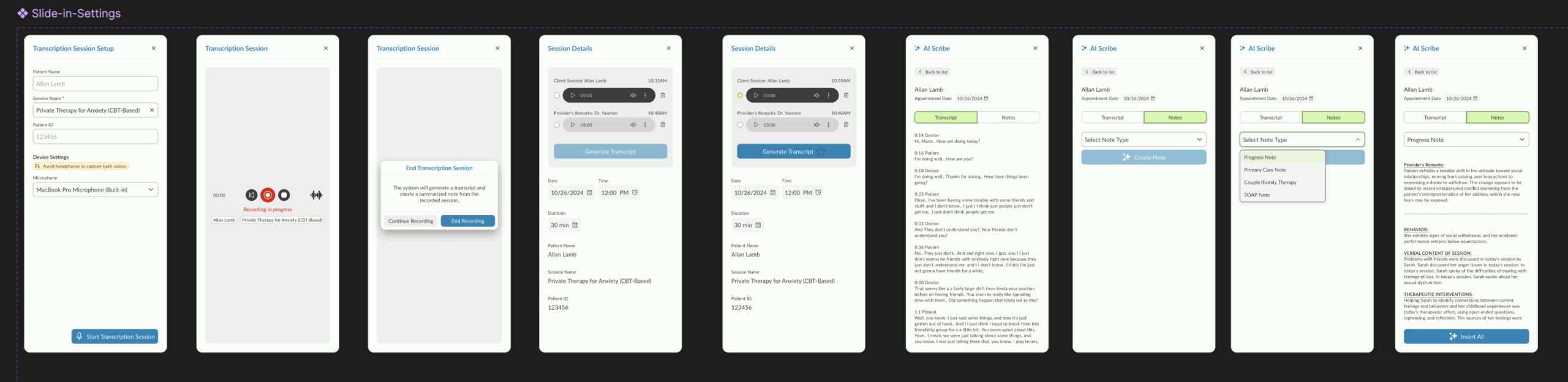
The AI Scribe interface launches as a slide-in modal over the existing Note screen. Recording controls sit at the top, followed by a note-type selector and a primary action button to transcribe or create a note. The generated transcript displays in a scrollable text area, pre-formatted into SOAP sections. Secondary actions for editing or inserting are placed inline at the bottom of the text area. The layout keeps the note content in focus while making recording and conversion accessible without leaving the screen.
On-demand — slide-in when ready to capture the session.
Breaking and rebuilding until it works better.
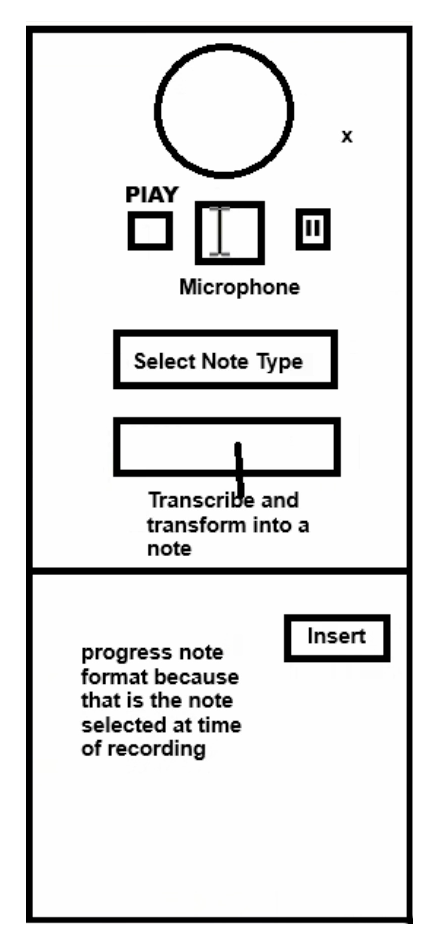
Exploration 2: Player-First Minimalism
A stripped-down starting point — just the essentials in view. Player controls take center stage, with the interface expanding only when transcription begins, keeping focus on the recording before the text takes over.
On-demand — slide-in when ready to capture the session.
Working session: Collaborative Refinement
With core components identified, this iteration shifted into a working session across design, engineering, AI, and PM teams. We tested how different layouts handled dependencies—especially across browsers—and moved components around based on live feedback. I experimented with using extra real estate to surface patient and doctor details in the slide-in, but later decided it was redundant since this data was already visible on the Note screen.
On-demand — slide-in when ready to capture the session.
Prototypes from the Working Session
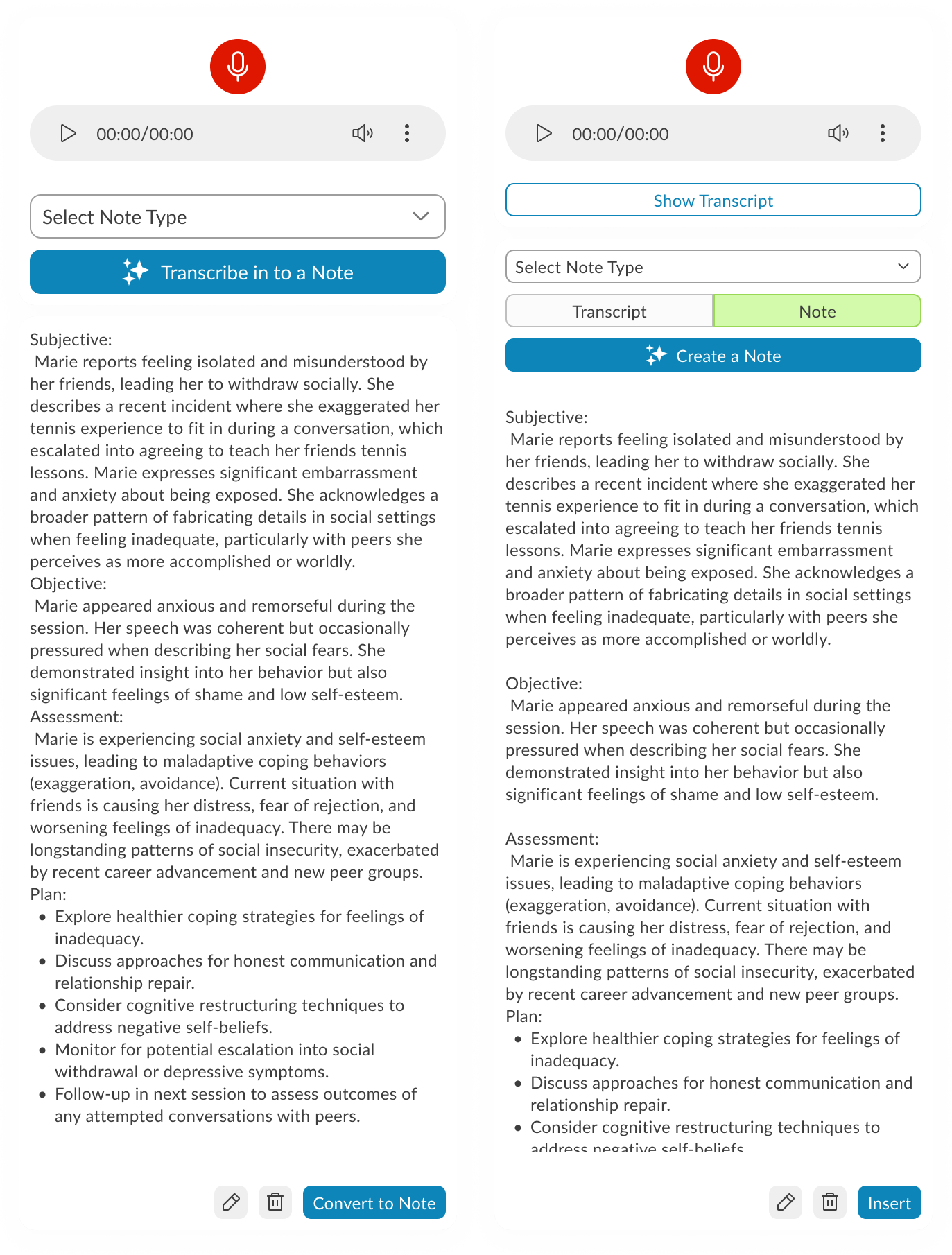
Prototype 1 – Guided Recording with Session Details This version walks the user through audio setup inside the product, displaying microphone and speaker options alongside session details. The recording starts via a blue CTA, followed by patient and doctor selection. As the session progresses, waveform visuals appear and the record button turns red. Doctors can pause after the patient leaves to add remarks, switch between transcript and note views, and use AI tools to generate a note. A note type dropdown determines how it’s inserted into the patient’s ongoing evaluation.
Prototype 2 – System-Level Setup with Section-Based Note Insertion Here, audio setup is integrated directly with system settings, so users can configure and test devices without hunting for them manually. Settings can be saved for future sessions, and test feedback is given visually with pop-ups. Recording remains live-only (no stored audio), relying on cache during internet drops. The post-session process allows granular control — instead of inserting an entire AI-generated note, users can insert individual sections into the patient’s record.
Prototype 3 – Telehealth Integration with Visible Recording Controls This iteration moves recording controls to the forefront, swaps the test button to red for visibility, and introduces telehealth support via native browser-based screen sharing with audio. Audio/video permissions are handled directly by the browser UI. For note creation, each transcript section now features a hover-based insert button centered in the component, streamlining the selective insertion process.
Transcription-Focused Refinement with Placement Constraints
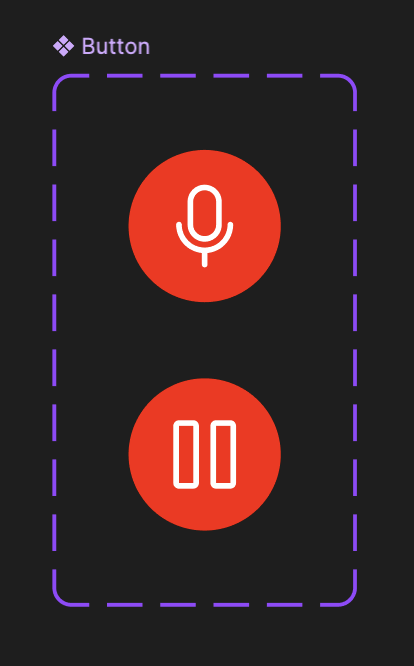
This refinement zeroes in on audio transcription controls, starting with session type selection — In-Person (microphone only) or Telehealth (microphone + screen/audio share with native permission prompts). Once the session starts, a live transcript appears in a popover, with the ability to pause, restart (clearing all captured audio/transcript), or stop. A pulsating timer reinforces the recording state.
The catch: our Notes screen UI is old, overcrowded, and not designed to host a control-heavy toolbar. Two paths emerged:
Test a toolbar overlay on the existing UI to see how it behaves despite the space limitations.
Redesign the Notes screen using the new design system to free up space and make the toolbar feel integrated, with clean placement and modern styling.
The result is two prototypes: one working within the legacy constraints, and another envisioning how the feature could live in a refreshed UI.
User Testing Results (via Ballpark)
Our research pointed out that by using Ballpark’s prototype task tracking,
we could see exactly where clinicians hesitated during the session initiation flow.
Goal Success Rate: “Start Scribe Session”
Success Rate:94% (14/15 participants)
Avg. Time to Goal: 12 seconds
Synthesis:My research pointed out that the clear distinction between “In-Person” and “Telehealth” at the start of the flow reduced cognitive friction. The 6% failure rate was due to users looking for a “Settings” menu first, which led to a design iteration to move audio-input checks directly into the start button.
2. Path Analysis: Toolbar Customization
Common Path:Start Session → Move Toolbar → Resize Popover → Focus on Note
Observation:Our research highlighted that 85% of testers immediately dragged the toolbar to the top-right corner.
Synthesis: This validated the need for a draggable UI. Clinicians have a “muscle memory” for where their notes live; our design allowed them to keep that layout without interference.
3. Sentiment Analysis (Opinion Scale)
Question:“How confident did you feel that the AI was accurately capturing the session during periods of silence?”
Avg. Score:4.8 / 5.0
Synthesis:My research pointed out that the pulsating timer provided a necessary “system heartbeat.” Even during 30-second therapeutic silences, clinicians felt secure that the tool hadn’t disconnected.
4. Heatmap Insight: Transcript Popover
Finding: Ballpark clickmaps showed high engagement with the “Pause” button during sensitive patient moments (e.g., when a patient began to cry).
Synthesis:Our research pointed out that clinicians value agency over automation. Providing an easy-to-reach pause control on the draggable bar gave them the “ethical kill-switch” they needed to feel comfortable in a clinical setting.
The Ballpark Snapshot
“By analyzing the video responses and screen recordings in Ballpark, our research pointed out that the tool didn’t just capture data; it changed behavior. Clinicians stopped leaning into their screens and started leaning into their patients.”